

Top
Author
Published
24 Jun 2026Form Number
LP2282PDF size
17 pages, 2.3 MBSubscribed to LP2282.
Thank you for your feedback.
Table of Contents
Abstract
The Veeam Software Appliance, introduced with Veeam Data Platform v13, is a pre-hardened, Linux-based deployment of Veeam Backup & Replication. Delivered as a bootable Just Enough OS (JeOS) file, it bundles the operating system, the Veeam software, and the configuration database in a single turnkey image that deploys in minutes, self-updates, and eliminates operating-system management overhead — without locking you down to proprietary hardware.
Lenovo recommends the ThinkSystem rack servers as excellent servers for small businesses up to large enterprises that need industry-leading reliability, management, and security, as well as maximizing performance and flexibility for future growth. The servers are designed to handle a wide range of workloads, such as databases, virtualization and cloud computing, virtual desktop infrastructure (VDI), infrastructure security, systems management, enterprise applications, collaboration/email, streaming media, web, and HPC.
This document provides essential post-sales information to understand the ThinkSystem rack servers basic guidelines when installing the Veeam Software Appliance software.
Introduction to Veeam Software Appliance
 Achieve radical resilience that can only come from complete confidence in your protection, response and recovery. Built on the principles of Data Security, Data Recovery and Data Freedom, Veeam Data Platform provides the confidence you need to take a stand against cyberattacks.
Introduced with Veeam Data Platform v13, the Veeam Software Appliance packages the operating system, Veeam Backup & Replication, and the configuration database into a single ISO. Per Veeam's v13 launch, it "deploys in minutes, self-updates, eliminates OS management overhead, and now supports high availability for uninterrupted operations, all without hardware lock-in."
Key capabilities include:
- Pre-hardened security: SSH disabled by default and built-in DISA STIG hardening — no manual OS patching required.
- Zero-trust model: backup administrators receive no base OS privileges; a Security Officer role approves high-risk operations such as backup deletion.
- Mandatory MFA: enforced for administrative roles; always on for the Security Officer.
- Lockdown mode: prevents unauthorized addition of infrastructure components.
- Veeam-managed updates: operating-system patches are delivered automatically by Veeam.
- Early threat detection: the AI-powered Malware Detection Engine performs inline entropy and file-extension analysis during backup.
Detailed guidance on installing the Software Appliance is available in the Veeam Backup & Replication v13 documentation.
Introduction to the recommended Lenovo ThinkSystem Servers
Combining performance and flexibility, the Lenovo ThinkSystem rack servers are a great choice for enterprises of all sizes. These servers offer a broad selection of drive and slot configurations and offers numerous high-performance features. Outstanding reliability, availability, and serviceability (RAS) and high-efficiency design can improve your business environment and can help save operational costs.

Figure 1. Lenovo ThinkSystem SR650 V3
For more information about the supported servers, see the following Lenovo Press product guides:
The Red Hat hardware certification list (HCL) pages for the servers are as follows:
Server documentation links:
Firmware update procedures
Updating the firmware and drivers on a regular schedule is the recommended best practice for several reasons:
- Achieves the highest-level hardware availability
- Enables you to proactively apply the latest bug fixes before your systems are affected by them
- Increases security, compatibility, and system uptime
For guidance on how to update the firmware of Lenovo ThinkSystem V3 servers, see the following documents:
- Lenovo ThinkSystem Firmware and Driver Update Best Practices - An Introduction
- Lenovo ThinkSystem V3 and V4 Server Firmware and Drivers Update Best Practices - Advanced Guide
In the following sections, we take a deeper in the update procedures:
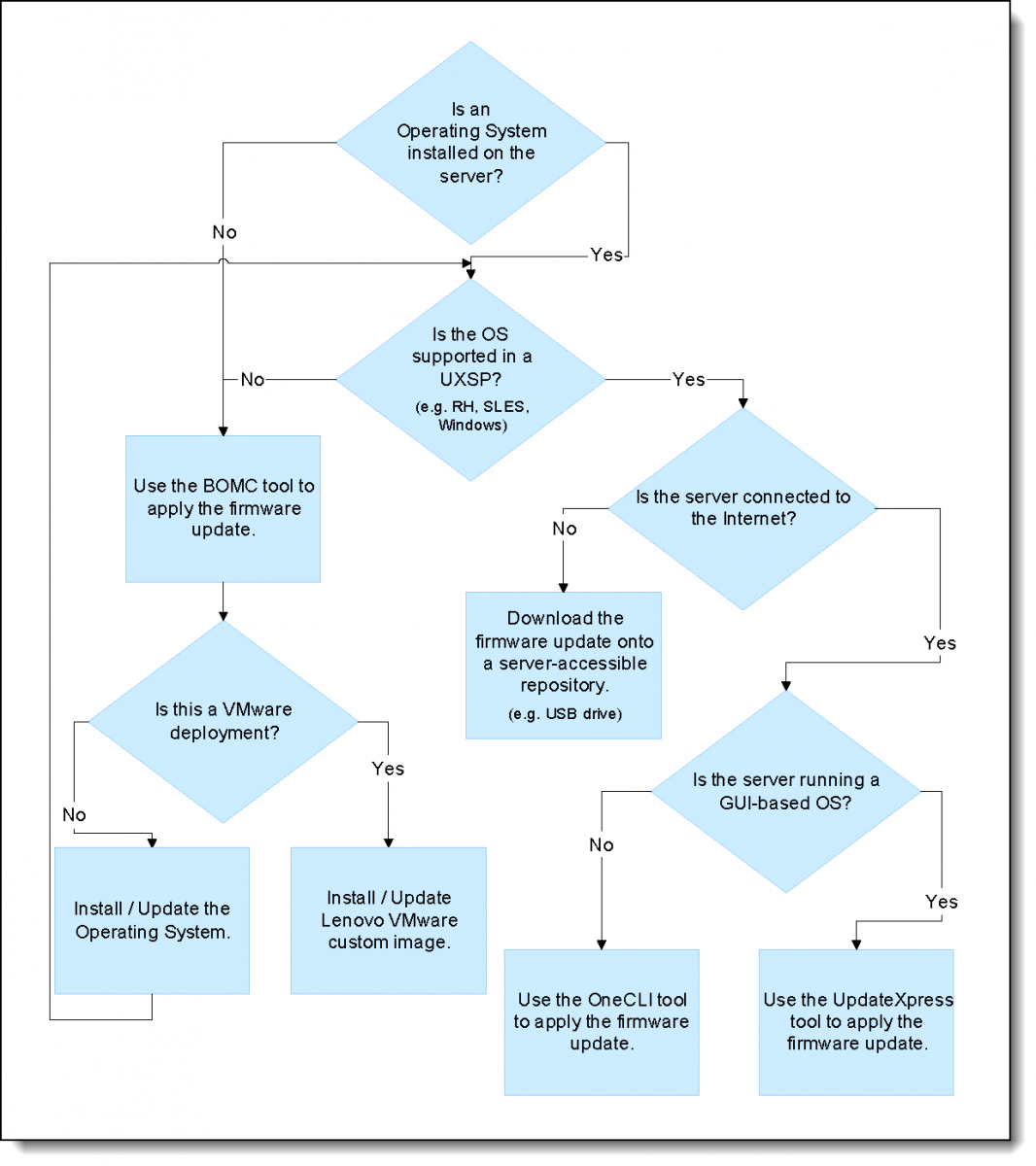
Recommendations for updates
To have a successful firmware update consider these recommendations:
- Use of UpdateXpress System Packs
- Lenovo recommends that you update the entire system to the latest UpdateXpress System Pack (UXSP) level before you deploy the server into a production environment. This includes system firmware, all adapter and hard-drive firmware, and the corresponding device drivers in the operating system.
Tip: Install all the hardware components (modules, adapters, and drives) and power on the system at least once before updating the entire system, so that everything will be activated, detected, and updated together.
Note: On the Veeam Software Appliance, operating-system patches and Veeam component updates are delivered by Veeam. The firmware guidance above applies to the underlying ThinkSystem hardware (BMC/XCC, UEFI, adapters, and drives), which remains the customer's responsibility.
Installing system firmware
If new system management controller firmware (IMM or XCC) is applied, either a system management controller restart (via the XCC/IMM web interface or CLI) or a full power cycle (unplug the server) will be required to activate the pending updates. A virtual reseat will also restart the controller (if the function is available in your server).
If new UEFI firmware is applied, a server reboot is required to activate the updates. If delayed activation is being used, such as in XClarity Administrator, then the updates will remain as pending (unapplied) on the system until server is restarted.
If the system management controller firmware update package also includes updated FPGA firmware (as indicated in the change history for the update), then both the system management controller will need to be restarted (via XCC/IMM web interface/CLI) and the server will need to be rebooted before the FPGA change becomes effective. A full power cycle (unplug the server) will achieve both.
Additional recommendations
Some additional recommendations when applying firmware updates:
- When installing new hardware
- If you install or upgrade hardware components later, make sure that you perform a full system update to ensure that the system can handle the new hardware, and that the newly installed components have the proper firmware and drivers.
- Updating firmware manually
- If you are updating individual firmware manually or via your own script but are not using the XClarity tools mentioned above, you should always update the BMC (XCC or IMM) first, restart the BMC and wait 5 minutes, then update UEFI, reboot the server, then update the rest of the system. This order ensures that critical dependencies are satisfied.
- Subscribe to updates on the Lenovo support site
- Make sure that you visit the Lenovo Support web site regularly, or that you subscribe to product notifications to be informed of critical updates for your devices. Then, plan your maintenance schedule accordingly.
RAID setup for logical drives
For information on setting up RAID arrays, see the following pages on the Lenovo Docs web site:
Using RAID to store data remains one of the most common and cost-efficient methods to increase server's storage performance, availability, and capacity. Supported RAID levels varies by the storage controller configured in the server.
To create a RAID array in the XCC web interface, access the RAID Setup from Storage and follow the detailed procedure below.
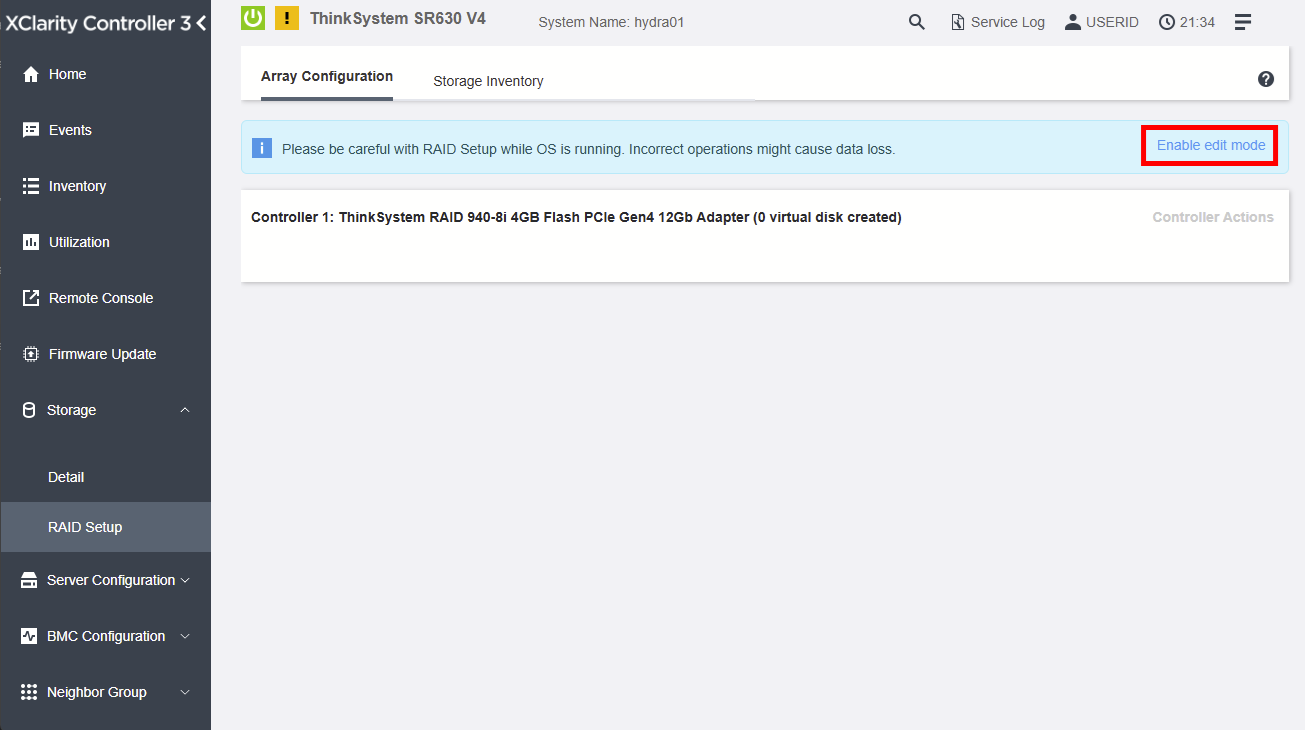
Figure 3. Click Enable edit mode button
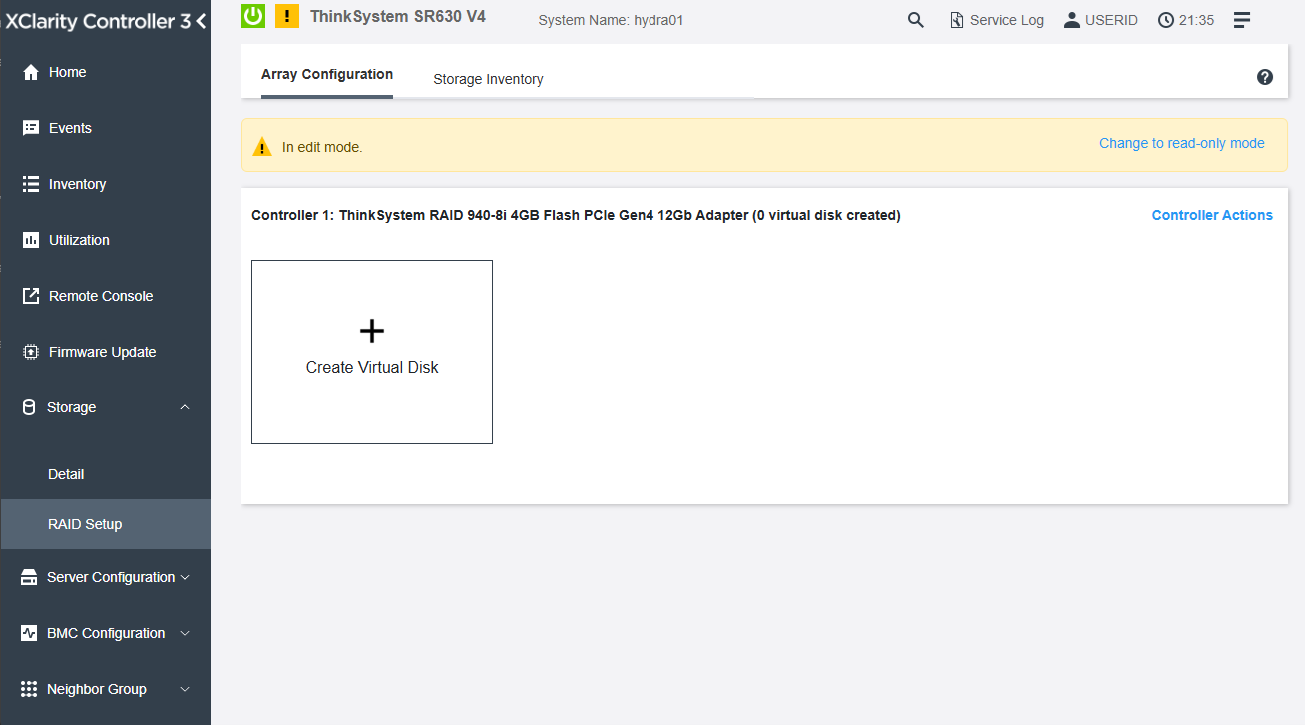
Figure 4. Click Create Virtual Disk button
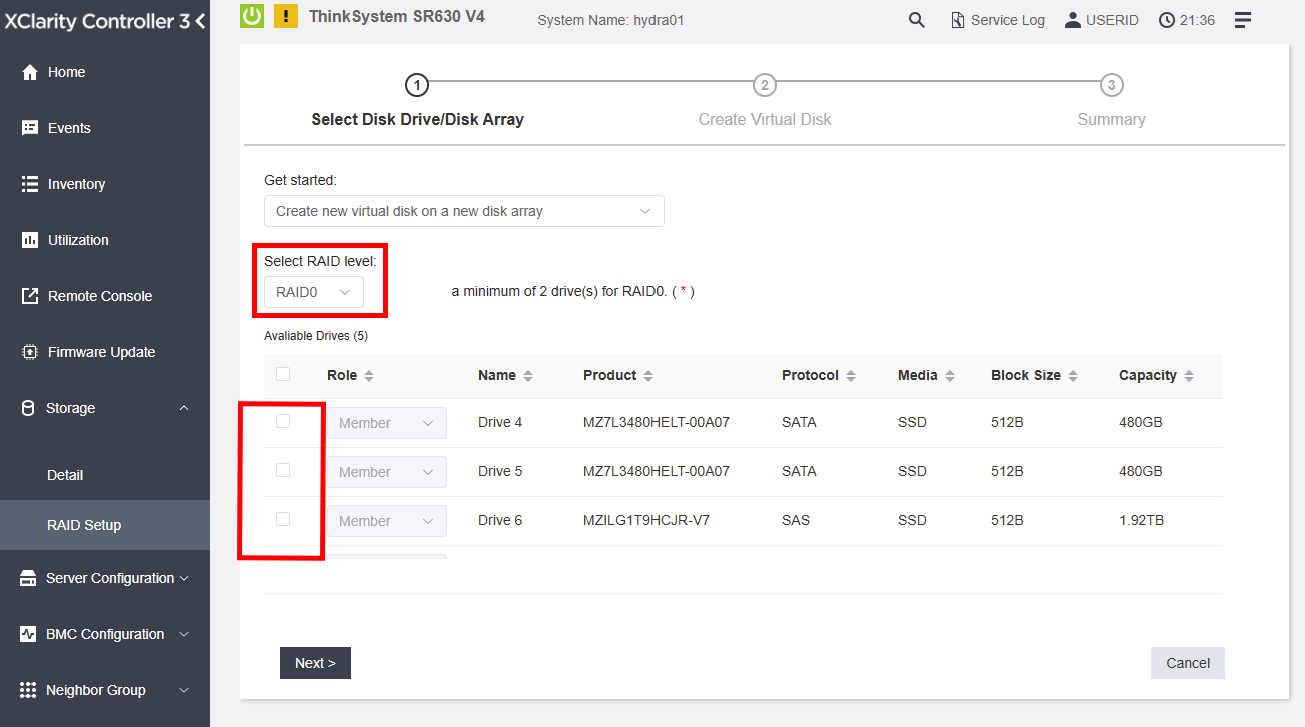
Figure 5. Select the desired RAID level and choose the disks to be used by the RAID array
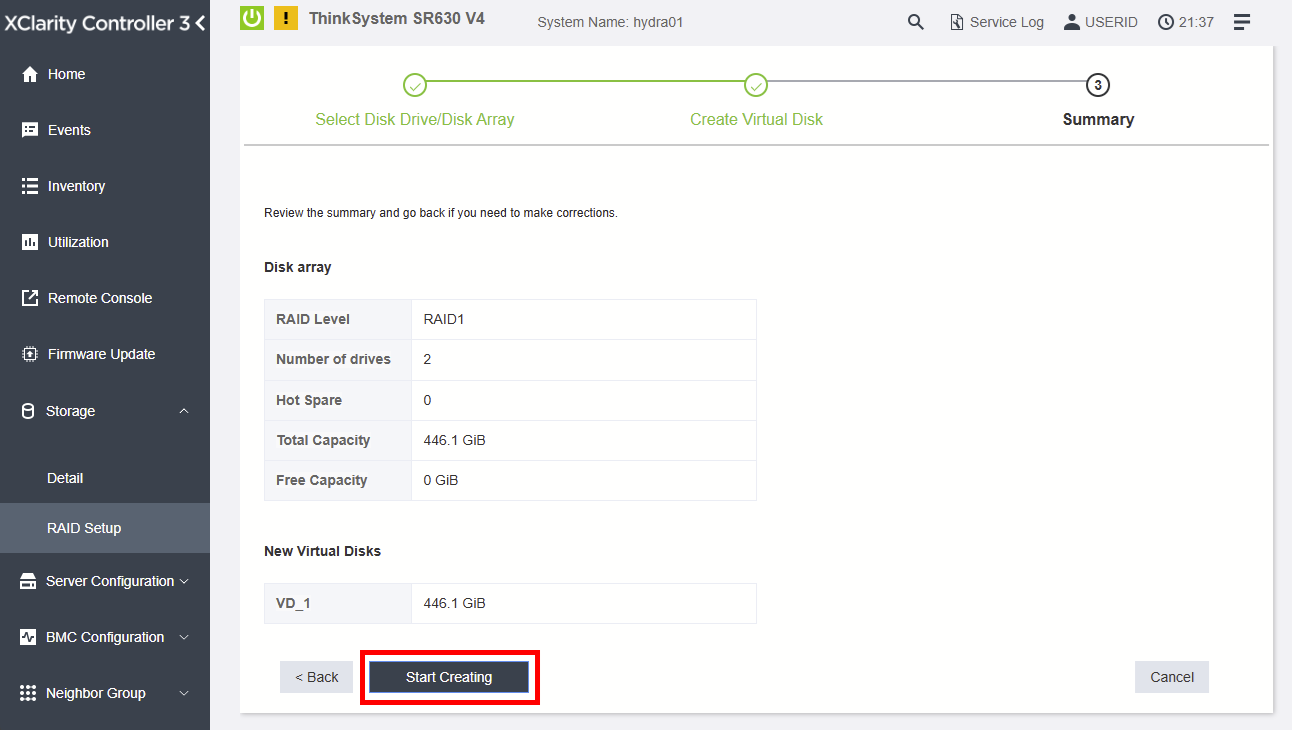
Figure 6. Click Start Creating button
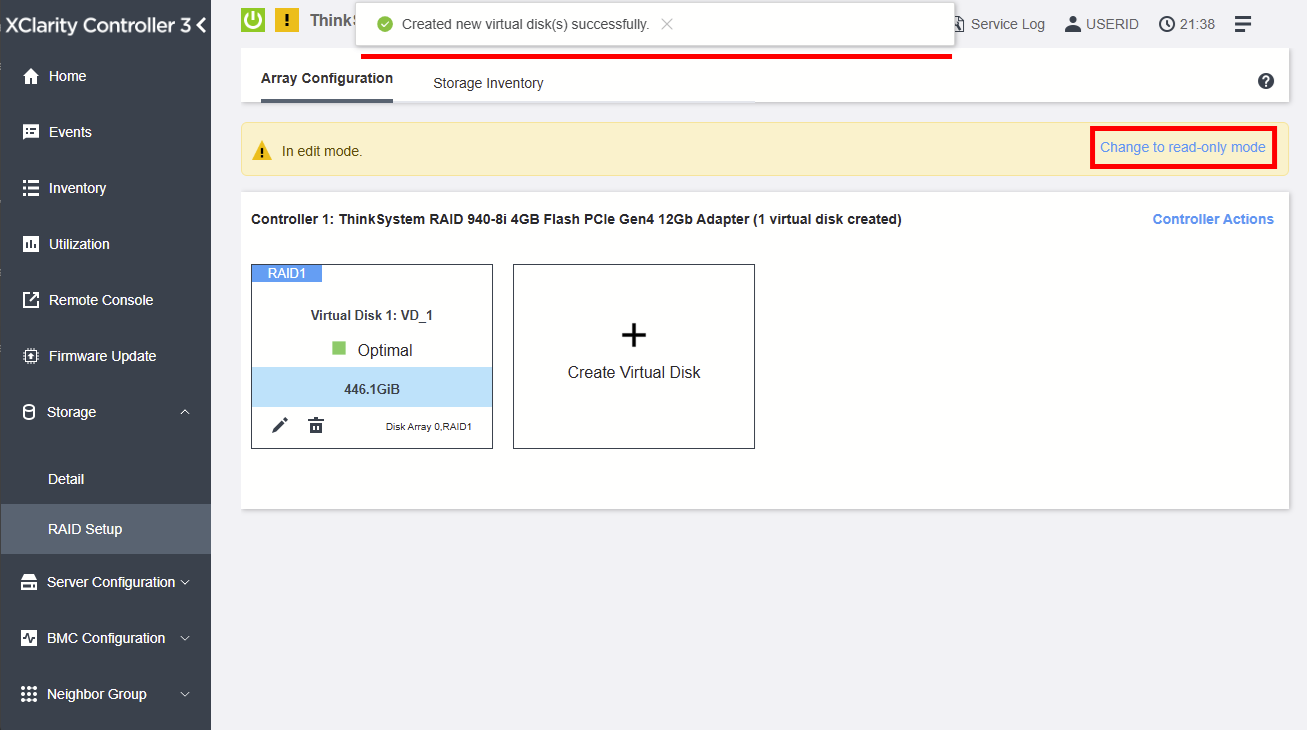
Figure 7. Click Change to read-only mode to exit the editing mode
You can configure RAID on the servers using Lenovo XClarity Provisioning Manager (LXPM).
- Check LXPM V4 for V3 server models.
You can also configure RAID on these servers using the XClarity Controller Web UI.
- Check XCC2 Web UI storage configuration for V3 server models.
The XCC Command Line Interface also supports RAID configuration.
- Check XCC2 CLI documentation for V3 server models.
Security procedures
To ensure your server is secure, follow the guidance in How to Harden the Security of your ThinkSystem Server and Management Applications, which covers hardening UEFI, Lenovo XClarity Controller, XClarity Administrator, and XClarity Orchestrator.
In addition to hardware hardening, the Veeam Software Appliance ships with its own application-level security model. During installation, you configure two privileged accounts: a Host Administrator (default veeamadmin) that performs all administrative tasks in the Host Management web UI and TUI, and an optional Security Officer (default veeamso) that approves high-risk "four-eyes" operations (Veeam User Guide). The appliance enforces DISA STIG password policy and locks an account after three failed attempts; because the root account is disabled, Lenovo recommends creating at least two Host Administrator accounts to avoid lockout (Veeam KB4663).
Note: The Security Officer role is optional but cannot be added after deployment. Configure it during initial installation if four-eyes verification is required.
XClarity Redfish integration
The Lenovo XClarity Controller provides a Redfish compliant set of easy-to-use REST APIs that can be used to access Lenovo XClarity Controller data and services from applications running outside of the Lenovo XClarity Controller framework.
This allows for easy integration of Lenovo XClarity Controller capabilities into other software, whether the software is running on the same system as the Lenovo XClarity Controller server, or on a remote system within the same network. These APIs are based on the industry standard Redfish REST API and are accessed via the HTTPS protocol.
Check XCC2 REST API for V3 server models to learn more about Lenovo XClarity Controller Redfish REST API.
Lenovo provides open-source sample Redfish scripts that can be used as reference for developing software that communicates with Lenovo Redfish REST API. These sample scripts can be found here:
- Python: https://github.com/lenovo/python-redfish-lenovo
- PowerShell: https://github.com/lenovo/powershell-redfish-lenovo
DMTF specifications related to the Redfish API are available at: https://redfish.dmtf.org/. This website provides general specifications and other reference material on the Redfish REST API.
Alternative health monitoring using XCC
The XClarity Controller UI offers a system status page where you can view the server hardware status, event and audit logs, system status, maintenance history and alert recipients.
The following documentation links describe the available functions.
- Viewing the Health Summary/Active System Events
- Use the information in this topic to understand how to view the Health Summary/Active System Events.
- Viewing the System Information
- This topic explains how to obtain a summary of common server information.
- Viewing the System Utilization
- By clicking Utilization in the left pane, a summary of common server utilization information is provided.
- Viewing Event Logs
- The Event Log provides a historical list of all hardware and management events.
- Viewing Audit Logs
- The Audit Log provides a historical record of user actions, such as logging in to the XClarity Controller, creating a new user, and changing a user password.
- Viewing the Maintenance History
- The Maintenance History page includes information about the firmware update, configuration and hardware replacement history.
- Configuring Alert Recipients
- To add and modify email and syslog notifications or SNMP TRAP recipients, use the information in this topic.
- Capturing the latest OS failure screen data
- Use the information in this topic to capture and view an operating system failure screen.
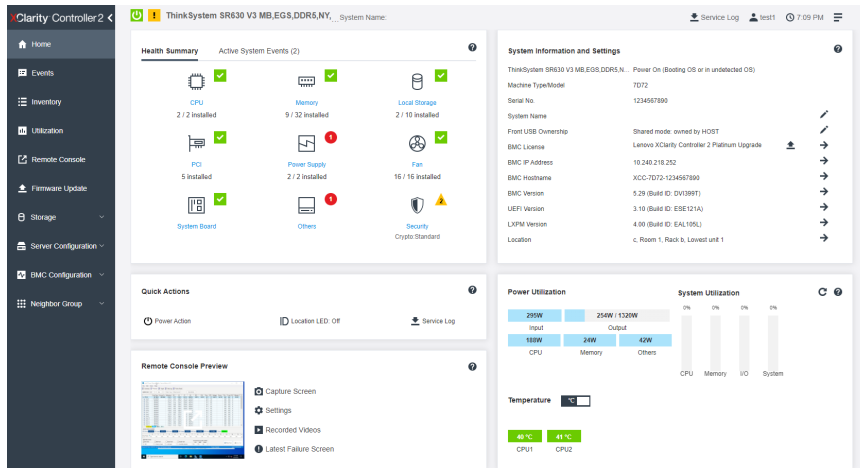
XClarity use of remote console for ISO installation
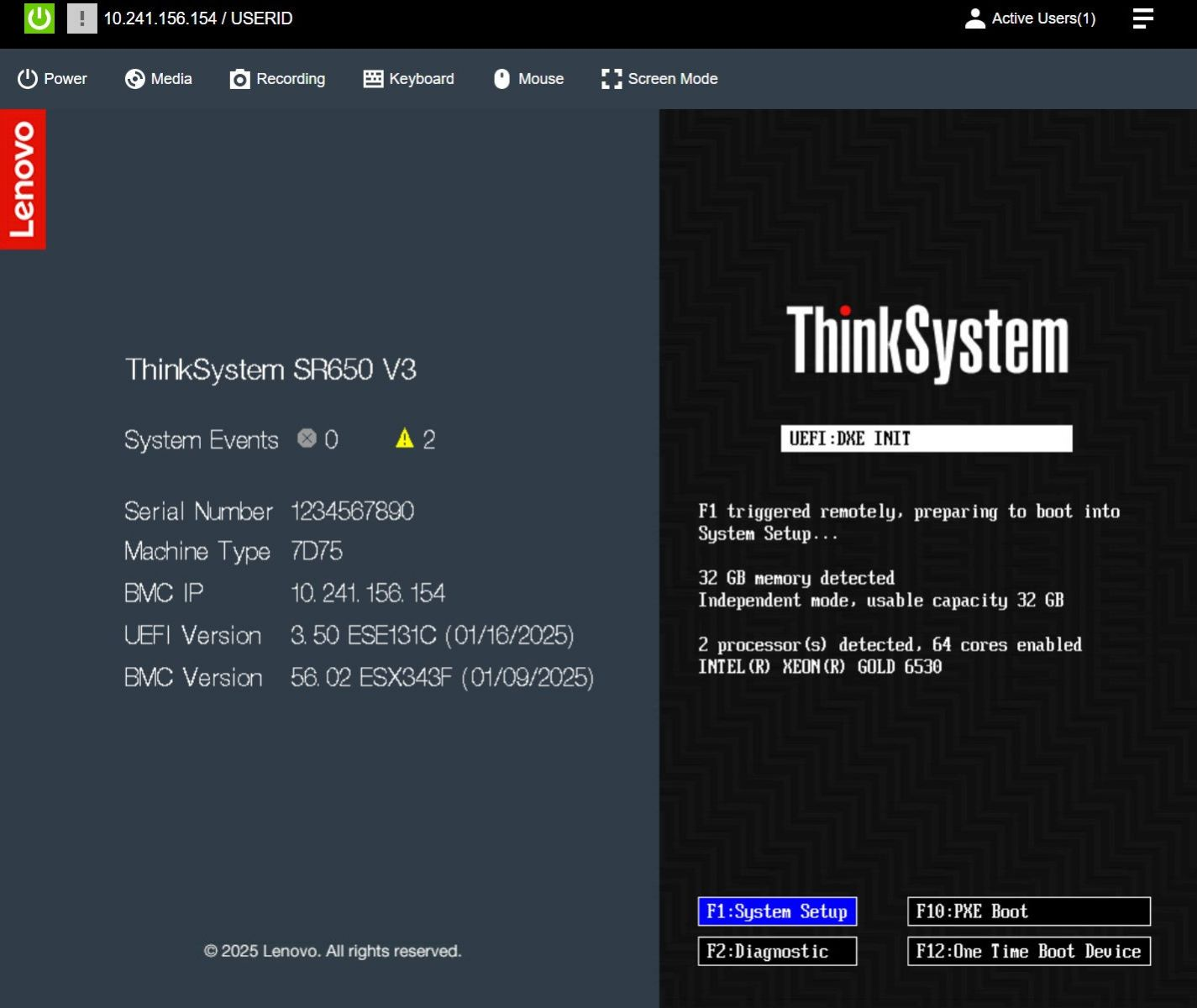
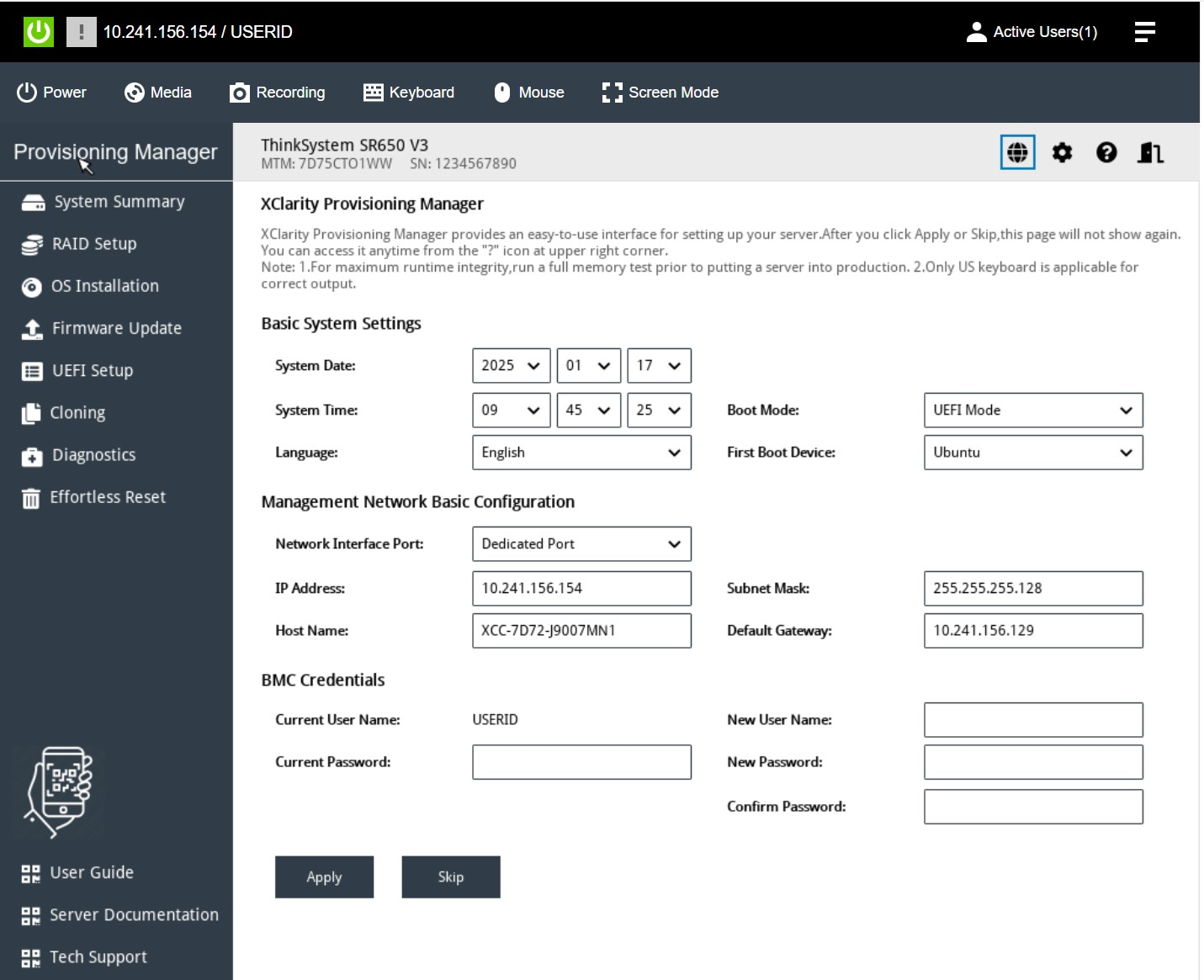
The remote console is the recommended method for mounting the Veeam Software Appliance ISO and performing a bare-metal installation. For guidance, see the following page in the Lenovo documentation: Enabling the remote console functionality.
XClarity Controller remote console functionality is available only in the XClarity Controller Advanced and XClarity Controller Enterprise features. If you do not have the privilege to operate the remote console, you will see a lock icon.
After you have purchased and obtained the activation key for the XClarity Controller Advanced upgrade install it using the instructions under Installing an activation key.
To use the remote console functionality, complete the following steps:
- Click the image with a white diagonally pointing arrow in the Remote Console section of the XClarity Controller homepage or the Remote Console web page.
- Select one of the following modes:
- Start remote console in single-user mode
- Start remote console in multiuser mode
- Select whether or not to allow others to request to send a disconnection request to a remote console user when someone wishes to use the remote console feature and the feature is already in use in Single User Mode, or when the maximum number of users are using the remote console feature in Multi User Mode. The No response time interval specifies how long the XClarity Controller will wait before automatically disconnecting the user if no response is received to the disconnection request.
- Select whether or not to allow record the latest three server boot videos, to allow record the latest three server crash videos, and to allow OS failure screen capture with HW error.
- Click Launch Remote Console to open the remote console page in another tab. When all possible remote console sessions are in use, a dialog box will pop up. From this dialog box, the user can send a disconnection request to a remote console user who has enabled the setting to Allow others to request my remote session disconnect. The user can accept or deny the request to disconnect. If the user does not respond within the interval specified by the No response time interval setting, the user session will automatically be ended by the XClarity Controller.
For more information
For more information about Veeam offerings from Lenovo, see the Veeam Software Solution Product Guide.
For the authoritative installation and configuration reference, see the Veeam Backup & Replication v13 User Guide.
Authors
Alejandro Perez is a WW Enterprise IT Solution Manager within Lenovo’s Infrastructure Solutions Group (ISG). He leads the adoption and integration of Enterprise Infrastructure solutions, serving as the Subject Matter Expert for targeted solution architectures. He collaborates with organic and 3rd party SW ecosystem partners to drive innovation and contribute to the company's success. With over 20 years of experience in the IT industry, he has a strong background in Edge Computing, Business Development, and SAP HANA. He is passionate about bringing new technologies to the market and developing new solutions for regional markets.
Trademarks
Lenovo and the Lenovo logo are trademarks or registered trademarks of Lenovo in the United States, other countries, or both. A current list of Lenovo trademarks is available on the Web at https://www.lenovo.com/us/en/legal/copytrade/.
The following terms are trademarks of Lenovo in the United States, other countries, or both:
Lenovo®
ThinkSystem®
XClarity®
The following terms are trademarks of other companies:
Linux® is the trademark of Linus Torvalds in the U.S. and other countries.
PowerShell® is a trademark of Microsoft Corporation in the United States, other countries, or both.
Other company, product, or service names may be trademarks or service marks of others.
Configure and Buy
Please select a locale
Full Change History
Course Detail
Employees Only Content
The content in this document with a is only visible to employees who are logged in. Logon using your Lenovo ITcode and password via Lenovo single-signon (SSO).
The author of the document has determined that this content is classified as Lenovo Internal and should not be normally be made available to people who are not employees or contractors. This includes partners, customers, and competitors. The reasons may vary and you should reach out to the authors of the document for clarification, if needed. Be cautious about sharing this content with others as it may contain sensitive information.
Any visitor to the Lenovo Press web site who is not logged on will not be able to see this employee-only content. This content is excluded from search engine indexes and will not appear in any search results.
For all users, including logged-in employees, this employee-only content does not appear in the PDF version of this document.
This functionality is cookie based. The web site will normally remember your login state between browser sessions, however, if you clear cookies at the end of a session or work in an Incognito/Private browser window, then you will need to log in each time.
If you have any questions about this feature of the Lenovo Press web, please email David Watts at dwatts@lenovo.com.


